Showing posts with label Ubuntu. Show all posts

Wednesday, November 1, 2023

Postgresql 16 installation on ubuntu 22.04

Postgresql 16 is the latest postgresql version, released on Sept 2023. To install postgresql 16 on ubuntu 22.04, just follow below steps


First, create a postgresql repository file
$ sudo sh -c 'echo "deb https://apt.postgresql.org/pub/repos/apt $(lsb_release -cs)-pgdg main" > /etc/apt/sources.list.d/pgdg.list'

Then, import repository signing key
$ wget --quiet -O - https://www.postgresql.org/media/keys/ACCC4CF8.asc | sudo apt-key add -

Update the package list
$ sudo apt update

Install postgresql
$ sudo apt install postgresql-16 -y

Configure postgresql to listen on all interfaces rather than just localhost
- Edit /etc/postgresql/16/main/postgresql.conf
$ sudo vi /etc/postgresql/16/main/postgresql.conf
- Add below configuration
listen_addresses = '*'
- Save and exit

Start postgresql
$ sudo systemctl start postgresql

Enable postgresql on boot
$ sudo systemctl enable postgresql

Allow postgresql port (5432) on ufw
$ sudo ufw allow 5432/tcp

Access to postgresql database and check version
$ sudo su - postgres
postgres@host:~$ psql
postgres=# select version();

The output should look like below


Type \q to exit psql


Friday, September 29, 2023

View information about audio or video files in command line

One of the command to accomplish this, is called mediainfo. It is not installed by default, so we have to install it first.


To install mediainfo in ubuntu, simply run
$ sudo apt update && sudo apt install mediainfo -y

Once installed, we can check the information of any audio / video file using the command
$ mediainfo myfile.mp4

Some of the information that we can get from a video file


Some of the information that we can get from an audio file


Monday, September 18, 2023

Converting rpm into deb, tgz and vice versa using alien

To convert rpm to deb, or vice versa, we can use a tool called alien. To install alien in an ubuntu machine:
$ sudo apt install alien -y

To install alien in redhat based distro:
$ sudo dnf install alien -y

Once installed, we can easily convert any rpm into deb:
$ sudo alien --to-deb myapp.rpm

A file called myapp.deb will be created once alien finished doing its magic.

We can also use alien to convert deb to rpm:
$ sudo alien --to-rpm myapp.deb

A file called myapp.rpm will be created.

We can also convert to tgz package:
$ sudo alien --to-tgz myapp.deb

To generate multiple packages format:
$ sudo alien --to-rpm --to-deb myapp.tgz

Thursday, August 31, 2023

Installing python's virtual environment in ubuntu linux

Python's virtual environment, is a way that developer can use to separate python's packages for different projects, in a single machine. The packages installed in this lightweight virtual environment, would be available in other virtual environment, thus removing the possibility of packages, org packages' version clashing inside a single machine.


First, we need to determine which python version is currently installed in our machine
$ python -V


Then, we need to install python-venv
$ sudo apt update && sudo apt install python3.10-venv -y

Once we have venv, we can start creating virtual environment. Let's say we wanted to have a virtual environment for a project called myproject, run this command
$ python3 -m venv myproject

The above command will create a directory called myproject, with necessary files in it. To activate the virtual environment, and start using it, we can run below commands
$ cd myproject
$ source bin/activate

How do we know that we are already inside the virtual environment? We will see the name of the virtual environment at our bash prompt, like below


We can now install any package that we need inside the virtual environment using pip, and that packages can only be used if we activate "myproject" virtual environment


To exit from the virtualenvironment, simply run deactivate command, and we will get back our standard bash prompt
$ deactivate


Wednesday, July 5, 2023

Using wireguard vpn client on ubuntu

Wireguard is an extremely simple yet fast and modern VPN that utilizes state-of-the-art cryptography. It aims to be faster, simpler, leaner, and more useful than IPsec, while avoiding the massive headache. It intends to be considerably more performant than OpenVPN.


To use wireguard as a client, first, we need to get the wireguard configuration file from the provider. It will come with .conf naming convention.

Once we have that, we need to install wireguard package together with resolvconf
$ sudo apt install wireguard resolvconf -y

Then, put the wireguard configuration file into /etc/wireguard
$ sudo mv mywireguard.conf /etc/wireguard

We are now able to use wireguard and connect to the wireguard server. Use below command to setup wireguard  interface using the above configuration
$ sudo wg-quick up mywireguard

An interface will be created with the same name
$ sudo ip link dev show mywireguard
8: mywireguard: <POINTOPOINT,NOARP,UP,LOWER_UP> mtu 1420 qdisc noqueue state UNKNOWN mode DEFAULT group default qlen 1000
    link/none

We should now be able to connect to any host inside the wireguard server's network.

To turn off wireguard, simply use below command
$ sudo wg-quick down mywireguard

Monday, July 3, 2023

Install zapzap, a desktop whatsapp client on ubuntu linux

zapzap is a desktop whatsapp client built for linux, and available to be installed via flathub. To install zapzap in ubuntu and its derivatives:


Install flatpak
$ sudo apt update && sudo apt install flatpak -y

Add flathub repo
$ flatpak remote-add --if-not-exists flathub https://dl.flathub.org/repo/flathub.flatpakrepo

Install zapzap using flatpak
$ sudo flatpak install flathub com.rtosta.zapzap

Once installed, launch zapzap. You will be presented with something like below


Follow the steps in the above picture, which are


You should now be able to use your whatsapp in zapzap


Monday, June 5, 2023

How to Install Clustercontrol Using Podman on Ubuntu 22.04

Clustercontrol is a database cluster management system, developed by severalnines. This tool is really useful if you want to install and manage multiple database clusters from one interface, easily. This tool supports many database types such as mysql, mariadb, postgresql, timescaledb and also redis.


This software can easily be installed using docker, just follow the instructions here. For podman users, worry not, below are the detailed instructions on how to do the same using podman. These steps have been tested on ubuntu 22.04, but they should run in any linux that support podman.

1. Make sure you have podman installed, please refer here if you have not install podman

2. Create some directories for clustercontrol's data and configuration
$ mkdir -p clustercontrol/{cmon.d,datadir,sshkey,cmonlib,backups,prom-data,prom-conf}

3. Get the machine's ip address
$ hostname -I

4. Copy ssh key into sshkey directory
$ cp ~/.ssh/id_rsa ~/clustercontrol/sshkey

4.1 If you don't have ssh keys yet, please follow here to generate a pair

5. Run clustercontrol using podman (image 1.9.5-4 is fully working at the time of writing of this article)
podman run -d --name clustercontrol \
-h clustercontrol \
-p 5000:80 \
-p 5001:443 \
-p 9443:9443 \
-p 19501:19501 \
-e DOCKER_HOST_ADDRESS=192.168.10.10 \
-v $PWD/clustercontrol/cmon.d:/etc/cmon.d \
-v $PWD/clustercontrol/datadir:/var/lib/mysql \
-v $PWD/clustercontrol/sshkey:/root/.ssh \
-v $PWD/clustercontrol/cmonlib:/var/lib/cmon \
-v $PWD/clustercontrol/backups:/root/backups \
-v $PWD/clustercontrol/prom-data:/var/lib/prometheus \
-v $PWD/clustercontrol/prom-conf:/etc/prometheus \
docker.io/severalnines/clustercontrol:1.9.5-4

6. Open a browser, and browse to https://192.168.10.10:5001, and replace the 192.16810.10 to your own ip address that you use in the command above. You should be able to see below page. Register and create user to start using clustercontrol.


Thursday, December 22, 2022

How to Install Podman on Ubuntu 22.04

Podman is a daemonless, open source, Linux native tool designed to make it easy to find, run, build, share and deploy applications using Open Containers Initiative (OCI) Containers and Container Images. 

Podman provides a command line interface (CLI) familiar to anyone who has used the Docker Container Engine.

Some of the advantages of podman over docker
1. Podman is daemonless
2. Podman is fully compatible with docker, thus one can run docker images without any modification even from docker.io
3. Most podman commands can be run as a regular user, without requiring additional privileges.

To install podman on ubuntu 22.04:

1. Update apt database 
$ sudo apt update

2. Install podman
$ sudo apt install podman

3. Check podman version
$ podman -v

4. Test podman
$ podman run docker.io/hello-world

5. If you get someting like below, your podman installation is successul and it is able to pull and run image from dockerhub


Saturday, October 1, 2022

Splitting video using linux command line

To easily split (or cut some part) of video using command line, a tool called ffmpeg can be used.


Why use command line? Lighter on resource. Video editing is a high resource activity, and by using command line, we can reduce the resource used on our machine while doing video splitting, especially if we are using low resources machine. 

To install ffmpeg, on an debian based machine, just run below command
$ sudo apt -y install ffmpeg

To do the splitting, just use below command
$ ffmpeg -i mymovie.mp4 -ss 00:01:00 -t 00:00:30 myeditedmovie.mp4

where
-i is for which video to edit
-ss is for where in the video that you want to start
-t is for the duration of the output video

So in the above example, you will get an output called myeditedmovie.mp4, which start from the first minute of the original video, and will last 30 seconds.

Sunday, July 31, 2022

Test UDP Port to Linux Server

To test if a udp port is allowed to a linux server, and not blocked by any firewall, we need ngrep on the server side, and nc (netcat) on the client side.


First, install ngrep on the server
$ sudo apt install ngrep -y

And start to watch the udp 10000 traffic (for example)
$ ngrep -q "accessible" udp port 10000

In the client side, we need to install netcat-openbsd 
$ sudo apt install netcat-openbsd

We are now going to test port 10000 udp in the server, from the client (the "yes, accessible" message could be anything, as long as it contains accessible keyword)
$ echo "yes, accesible" | nc -u server-ip 10000

If the port is opened (not blocked by any firewall), you will get message like below in the server terminal
U client-ip:39062 -> server-ip:443 #1
  yes, accessible...    

If the port is blocked, you won't get any output on the server terminal
  

Friday, May 27, 2022

Excellent pdf editor in ubuntu

One of the field that I found linux is quite lacking is, in editing pdf. But a few weeks ago, A friend of mine recommended an excellent tool, called xournal++ (or xournalpp). This is actually a tool to do journalling, but the pdf editing feature is so good, it beats all the tools I previously used.


This application is available not just in Linux, but in Windows and MacOS as well. To install xournal++ in ubuntu, just follow the steps below.

Installing using snap

First, make sure you have snapd installed. If you do not have snap, you can install it by running
$ sudo apt install snapd -y

Then, install xournal++ using snap
$ sudo snap install xournalpp

Installing using apt (for ubuntu 22.04 and above)

If you are not a fan of snap, worry not, xournal++ is also available in the ubuntu repository for ubuntu 22.04 and above. Please folllow below steps to install xournalpp using apt.

Install xournalpp
$ sudo apt install xournalpp -y

Installing using apt (for older ubuntu)

Lets say your are using an older version of ubuntu (for example 20.04), worry not, just download the deb package from the release page, and install it using apt.

Browse the release page at https://github.com/xournalpp/xournalpp/releases/. 


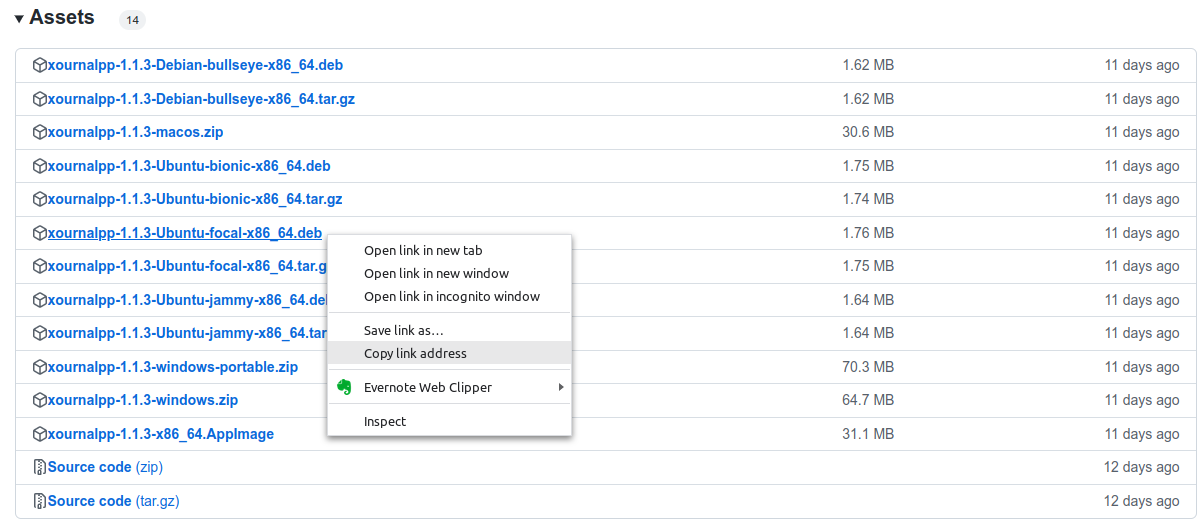
Click on the "Tags" tab, and choose which release that you are interested. In this example we will choose v1.1.3. Click on the v1.1.3 tag.

Get the download link from the list of assets. Choose the one suitable for your version of operating system. 


Download the deb file
$ wget https://github.com/xournalpp/xournalpp/releases/download/v1.1.3/xournalpp-1.1.3-Ubuntu-focal-x86_64.deb

And install it using apt
$ sudo apt install ./xournalpp-1.1.3-Ubuntu-focal-x86_64.deb -y
Once installed just launch xournal++ from your application launcher, 


or you can also launch it from terminal by running
$ xournalpp

Thursday, February 10, 2022

How to install go in linux

Go is a programming language, created by engineers at Google in 2007 to create dependable and efficient software. Go is most similarly modeled after C.


To install go linux, the steps are very easy.

1. Download go package from https://go.dev/dl/

$ wget https://go.dev/dl/go1.18.linux-amd64.tar.gz

2. Extract the tar package

$ tar xvf go1.18.linux-amd64.tar.gz 

3. Include the go bin directory into PATH

echo "export PATH=\$PATH:/home/user/go/bin" ~/.bashrc

source ~/.bashrc

4. Test your go command
$ go version
go version go1.18 linux/amd64

Monday, October 18, 2021

Connect to a wifi by scanning a QR code in Linux

There is a project in github, that contain a script to easily accomplish this task. The project is called wifi-qr by kokoye2007. It can be cloned here.


To use the script, we need to clone the project from github.

$ git clone https://github.com/kokoye2007/wifi-qr

Once cloned, go into the project directory.

$ cd wifi-qr

To scan a QR code, and connect to the wifi information contained in the code 

$ ./wifi-qr s

A camera interface will be displayed. Show our wifi QR code to the computer's webcam, and the script will read the QR code and automatically connect to the wifi using the information in the QR code.


Apart from scanning QR code and connecting to the wifi, this script has a lot more functions. You can read about all the functions here. Thank you to kokoye2007 for this excellent tool.


Friday, October 15, 2021

Scanning QR Code in Ubuntu Linux

To get the information from a qr code, first and foremost, we need to save the qr code as a file. One of the way is to use a webcam, and an app called cheese to take picture using the webcam. Then we need to install zbar-tools to extract information from the qr code file. 


Install cheese

$ sudo apt update; sudo apt install cheese -y

Install zbar-tools

$ sudo apt install zbar-tools -y


Then, take a picture of the qr code using cheese via our webcam.


Once we have the qr code saved in a file, use zbarimg to extract the information from the qr code

$ zbarimg Downloads/frame.png 

QR-Code:https://www.linuxwave.info

scanned 1 barcode symbols from 1 images in 0.04 seconds


You can see that in the above output, that the qr code contain a url to this website.


Friday, January 22, 2021

Installing Openssl Application to Use SSL Functions

The openssl program is a command line tool for using the various cryptography functions of OpenSSL's crypto library from the shell. 


To install openssl in ubuntu or debian:

$ sudo apt install openssl -y


To install openssl in RHEL, CentOS or Fedora:

$ sudo yum install openssl -y


Tuesday, December 22, 2020

Set Bitnami Wordpress Application to Start on Boot on Ubuntu 20.04

To set a bitnami wordpress application to start on boot, you just need to make sure that systemctl can use the ctlscript. To do that:


1. Locate the installation directory of your bitnami wordpress. If you are following the default setting, the location should be in /opt


2. Locate the ctlscript.sh file, which is the script to start, stop and restart bitnami-application.

$ sudo find / -iname "ctlscript.sh" -type f

/opt/bitnami-wordpress-5.6-0/ctlscript.sh


3. Copy the script to /etc/init.d, and rename it to bitnami-wordpress

$ sudo cp /opt/bitnami-wordpress-5.6-0/ctlscript.sh /etc/init.t/bitnami-wordpress


4. Edit the script, and add "INIT INFO" settings below #!/bin/sh to ensure systemd can understand the script

#!/bin/sh

### BEGIN INIT INFO

# Provides:          bitnami-wordpress

# Required-Start:    $remote_fs $syslog

# Required-Stop:     $remote_fs $syslog

# Default-Start:     2 3 4 5

# Default-Stop:      0 1 6

# Short-Description: Start daemon at boot time

# Description:       Enable services provided by daemon.

### END INIT INFO

...


5. Save the file, and make systemd aware of the new startup script
$ sudo systemctl daemon-reload

6. Test the new bitnami-wordpress script
$ sudo systemctl status bitnami-wordpress

7. Enable bitnami-wordpress on boot
$ sudo systemctl enable bitnami-wordpress

8. Test it out by rebooting your machine...
$ sudo reboot

9. ...and check the status of the bitnami-wordpress service after reboot
$ sudo systemctl status bitnami-wordpress

Installing a Bitnami Wordpress Stack on Ubuntu 20.04

Bitnami team have done a great job in making the adoption of a lot of open source software easier. Today I want to show how you can install a bitnami wordpress stack on ubuntu 20.04.

First, we need to visit https://bitnami.com/stack/wordpress/installer, and download the installer for linux. As of today, the version available is 5.6.0.

$ wget -c https://bitnami.com/redirect/to/1252289/bitnami-wordpress-5.6-0-linux-x64-installer.run 

Once downloaded, give the file permission to be executed

$ chmod +x bitnami-wordpress-5.6-0-linux-x64-installer.run

Run the installer

$ sudo sh bitnami-wordpress-5.6-0-linux-x64-installer.run

Run through the wizard. In this example, we will install just wordpress and mysql, with default option for most of the questions asked in the wizard.

Once the installation is complete, you will see below confirmation:

Bitnami confirmation

Choose Y to start bitnami wordpress.

Your wordpress site can now be accessed at http://<ip address>/wordpress, and the admin page can be accessed at http://<ip address>/wordpress/wp-admin, my ip address in this example is 192.168.58.4.
Wordpress main page

Wordpress admin page

In order to control the service, you can do so by using the script in bitnami installation directory called ctlscript.sh. In this example, I used the default settings for the installation directory, which is /opt/wordpress-5.6-0.

To show status of bitnami wordpress
$ sudo /opt/wordpress-5.6-0/ctlscript.sh status

To stop wordpress services
$ sudo /opt/wordpress-5.6-0/ctlscript.sh stop

And to start wordpress services 
$ sudo /opt/wordpress-5.6-0/ctlscript.sh start


Saturday, November 7, 2020

Set static IP address in ubuntu 18.04

Starting from ubuntu 18.04, network configuration is now handled by netplan, which is based on YAML.


To set a static ip in netplan, you need to know what is the interface name that you want to configure. To do that, just run "ip address" command
$ ip address
1: lo: <LOOPBACK,UP,LOWER_UP> mtu 65536 qdisc noqueue state UNKNOWN group default qlen 1000
    link/loopback 00:00:00:00:00:00 brd 00:00:00:00:00:00
    inet 127.0.0.1/8 scope host lo
       valid_lft forever preferred_lft forever
    inet6 ::1/128 scope host 
       valid_lft forever preferred_lft forever
2: enp0s3: <BROADCAST,MULTICAST,UP,LOWER_UP> mtu 1500 qdisc fq_codel state UP group default qlen 1000
    link/ether 08:00:27:18:46:ea brd ff:ff:ff:ff:ff:ff
    inet 192.168.0.154/24 brd 192.168.0.255 scope global dynamic enp0s3
       valid_lft 604595sec preferred_lft 604595sec
    inet6 2001:e68:542c:e410:a00:27ff:fe18:46ea/64 scope global dynamic mngtmpaddr noprefixroute 
       valid_lft 259188sec preferred_lft 172788sec
    inet6 fe80::a00:27ff:fe18:46ea/64 scope link 
       valid_lft forever preferred_lft forever
3: enp0s8: <BROADCAST,MULTICAST> mtu 1500 qdisc noop state DOWN group default qlen 1000
    link/ether 08:00:27:7d:fa:68 brd ff:ff:ff:ff:ff:ff

You can see that we have 2 interfaces, enp0s3 and enp0s8. Now we have to locate which file need to be edited to give enp0s8 a static IP address. We can do that by:
$ ls /etc/netplan/
01-netcfg.yaml

To add an ip address  of 10.10.10.10/24 to enp0s8, with gateway 10.10.10.1 and nameserver 8.8.8.8 and 8.8.4.4, simply edit /etc/netplan/01-netcfg.yaml as per below
$ sudo vi /etc/netplan/01-netcfg.yaml
network:
  version: 2
  renderer: networkd
  ethernets:
    enp0s3:
      dhcp4: yes
    enp0s8
      dhcp4: no
      addresses: [10.10.10.10/24]
      gateway4: 10.10.10.1
      nameservers:
        addresses: [8.8.8.8,8.8.4.4]

Save the file. Since this is a yaml based configuration, make sure that the indentation is uniform across the file. To test your configuration for any syntax error, and press ENTER if you agree to use the configuration:
$ sudo netplan try
Do you want to keep these settings?


Press ENTER before the timeout to accept the new configuration


Changes will revert in 119 seconds
Configuration accepted.  

Once accepted, verify the ip has been set using "ip address" and "ip route"
$ ip address show dev enp0s8
3: enp0s8: <BROADCAST,MULTICAST,UP,LOWER_UP> mtu 1500 qdisc fq_codel state UP group default qlen 1000
    link/ether 08:00:27:7d:fa:68 brd ff:ff:ff:ff:ff:ff
    inet 10.10.10.10/24 brd 10.10.10.255 scope global enp0s8
       valid_lft forever preferred_lft forever
    inet6 fe80::a00:27ff:fe7d:fa68/64 scope link 
       valid_lft forever preferred_lft forever

$ ip route show dev enp0s8
default via 10.10.10.1 proto static 
10.10.10.0/24 proto kernel scope link src 10.10.10.10 

Friday, April 3, 2020

Install and Use Vagrant on Linux Mint 19 with Virtualbox

Vagrant is a tool for building and managing virtual machine environments in a single workflow. With an easy-to-use workflow and focus on automation, Vagrant lowers development environment setup time, increases production parity, and makes the "works on my machine" excuse a relic of the past.


We can always install vagrant from the repository, but the one in the repository is quite an old version, which is 2.0.2. So we will download the latest version from https://www.vagrantup.com/downloads.html. Since they do not provide a package for ubuntu/mint, we will use debian package.

To download the installer
$ wget -c https://releases.hashicorp.com/vagrant/2.2.7/vagrant_2.2.7_x86_64.deb 

To install vagrant
$ sudo apt install ./vagrant_2.2.7_x86_64.deb -y

Download virtualbox, if you still have not install it
$ wget -c https://download.virtualbox.org/virtualbox/6.1.4/virtualbox-6.1_6.1.4-136177~Ubuntu~bionic_amd64.deb

Install  virtualbox
$ sudo apt install ./virtualbox-6.1_6.1.4-136177~Ubuntu~bionic_amd64.deb -y

Let's say we want to create an ubuntu bionic virtual machine (VM) using vagrant. First we have to run init
$ mkdir -p  vagrant/ubuntu-bionic
$ cd vagrant/ubuntu-bionic
$ vagrant init hashicorp/bionic64
$ vagrant up

The init command will create a standard Vagrantfile, which can be used to define the specs of virtual machine we want to make.

The up command will use the Vagrantfile, and create a VM out of it.

Once all the downloading is done, the VM will be created, and you can login into the box using ssh command
$ vagrant ssh

And within just a few commands, you already have a working virtual machine without having to do the standard operating system installation just like when you create a virtual machine using the traditional way.

Thursday, February 13, 2020

Installing Wordpress on Ubuntu 18.04 Using LEMP Stack

Installing wordpress on LEMP stack is not much different from installing in LAMP stack. For those who do not know, LEMP stands for Linux + Nginx + Mariadb + PHP stack, and LAMP stands for Linux + Apache + Mariadb/mysql + PHP stack. Check out my other post on how to install wordpress on LAMP stack on ubuntu.

As per the stack definition, there are 3 main components to be installed: nginx, mariadb and php.

Install nginx:
$ sudo apt install nginx -y

Install mariadb:
$ sudo apt install mariadb-server -y

Install php, php-mysql and php-fpm
$ sudo apt install php php-mysql php-fpm -y

Download wordpress code
$ wget https://wordpress.org/latest.tar.gz

Start mariadb
$ sudo systemctl start mariadb

Secure mariadb installation
$ sudo mysql_secure_installation

Create a database for wordpress
$ sudo mariadb -u root
MariaDB [none]> create database wpdb;
MariaDB [none]> grant all on wpdb.* to wpuser@localhost identified by 'wppassword';
MariaDB [none]> flush privileges;
MariaDB [none]> exit

Test the newly created user and db
$ mariadb -u wpuser -p wpdb
MariaDB [wpdb]> exit

Download wordpress
$ wget https://wordpress.org/latest.tar.gz

Extract wordpress
$ tar -xvf latest.tar.gz

Move wordpress directory to /var/www/html
$ sudo mv wordpress /var/www/html

Change ownership of the wordpress directory
$ sudo chown -R www-data /var/www/html/wordpress

Create nginx virtualhost configuration for wordpress
$ sudo nano /etc/nginx/conf.d/wordpress.conf

Add in below code (change the server name to refer to your ip address, since we do not have any domain at the moment)
server {
        listen   80;

        root /var/www/html/wordpress;
        index index.php index.html;
        server_name wordpress.10.0.0.5.nip.io;

        location / {
                try_files $uri $uri/ /index.php?q=$request_uri;
        }

        error_page 404 /404.html;
        error_page 500 502 503 504 /50x.html;
        location = /50x.html {
              root /usr/share/nginx/www;
        }

        location ~ .php$ {
                try_files $uri =404;
                fastcgi_pass unix:/run/php/php7.2-fpm.sock;
                fastcgi_index index.php;
                fastcgi_param SCRIPT_FILENAME $document_root$fastcgi_script_name;
                include fastcgi_params;
        }
}


Save the file and exit

Test nginx config for any syntax error
$ sudo nginx -t

Start nginx
$ sudo systemctl start nginx

Start php-fpm
$ sudo systemctl start php7.2-fpm

Open a web browser and put in you server_name address in the address bar, and you should be able to get the wordpress installation wizard. Press "Continue"


Press "Let's go!"

Fill up database details and press "Submit"

If everything is correct, you will get to "Run the installation" page. Click on "Run the installation" button. 

Fill up the necessary information for your wordpress blog, and click "Install wordpress" to finish wordpress installation